> ## Documentation Index
> Fetch the complete documentation index at: https://docs.synctera.com/llms.txt
> Use this file to discover all available pages before exploring further.
# KYB cases
> The KYB case allows you to assess the KYB outcome for business customers who are not automatically accepted.
## Overview
The verification process evaluates various data points, among other factors:
* **Business Verification:** Entity Names, Addresses, State Registrations and Status.
* **Tax ID Number:** TIN/EIN validation, with alternative name possibilities.
* **Watchlists Screening:** Check against government-sanctioned watchlists, including OFAC
* **Web Presence:** Detailed overview of web presence, including site status, social profiles, and terms of service links.
* **Industry Classification:** Identify entities operating in "prohibited" industries with a set of classifications.
## When to use the KYB case type
The business verification process occurs in real time and results in a pass or fail. If a business or related person fails, a case is automatically created in the Synctera console for manual review. After completing the verification, businesses receive one of the following statuses:
* **Passed:** The business is verified and will proceed with onboarding.
* **Review/Rejected:** The business will enter a manual review for a final decision if it can't be verified or was flagged for high-risk activities. This status can occur for several reasons, such as being a new business, having typos in the information, or matching a government watchlist.
## Data displayed in the KYB case
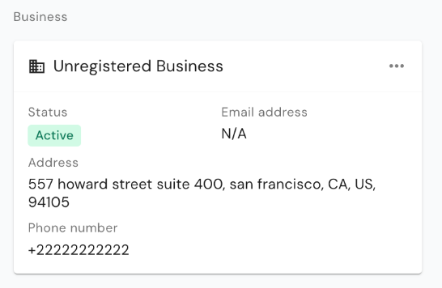
### **Business**
This displays information about the business customer. Click on the "View Customer" link to access full customer details.
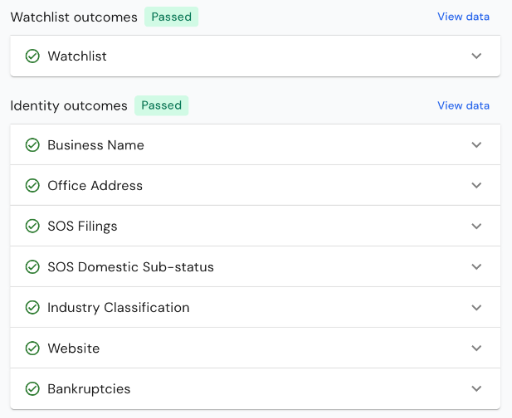
 ### **KYB Verifications**
This section displays the KYB check results, categorized into passed and failed outcomes for each verification type.
### **KYB Verifications**
This section displays the KYB check results, categorized into passed and failed outcomes for each verification type.
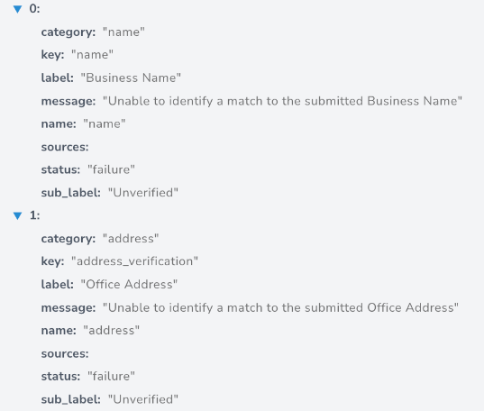
 ### **View Data**
This is the full JSON object that holds the API response with the full and detailed verification data for the KYB outcome.
### **View Data**
This is the full JSON object that holds the API response with the full and detailed verification data for the KYB outcome.
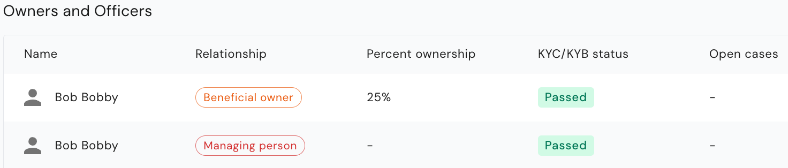
 ### **Owners and Officers**
This section displays all owners and officers associated with the business, their individual KYC outcomes, and any potential KYC cases open to those individuals.
### **Owners and Officers**
This section displays all owners and officers associated with the business, their individual KYC outcomes, and any potential KYC cases open to those individuals.
 ### Related Cases and History
These options show related cases, which are historical cases linked to the same customer and case history, including all status transitions of the KYB case.
### Related Cases and History
These options show related cases, which are historical cases linked to the same customer and case history, including all status transitions of the KYB case.
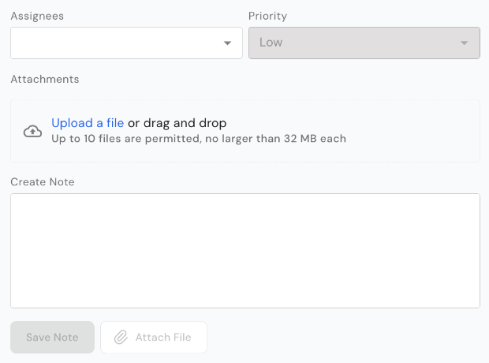
 ### Case assignment, notes, and document upload
The KYB case allows for adding an assignee, entering notes, and providing supporting documentation to assist in resolving the case review.
### Case assignment, notes, and document upload
The KYB case allows for adding an assignee, entering notes, and providing supporting documentation to assist in resolving the case review.
 ## Reviewing KYB cases
### **Mark case as In Review**
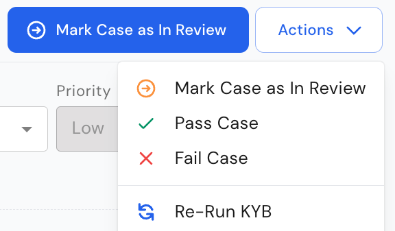
This feature allows a user to move a case from the New state, indicating to reviewers that it has been initially assessed and is under review, even if a final decision is pending. This helps distinguish between newly opened cases and those awaiting additional information before a final decision.
## Reviewing KYB cases
### **Mark case as In Review**
This feature allows a user to move a case from the New state, indicating to reviewers that it has been initially assessed and is under review, even if a final decision is pending. This helps distinguish between newly opened cases and those awaiting additional information before a final decision.
 ### **Fail case**
Take this action when it has been determined that the business or related person cannot be verified. This will change the business verification status to 'Rejected', and the business will not be able to onboard.
### **Pass case**
After resolving the manual review flags and verifying the information of associated individuals, you can update the business's status to "passed." This will permit the business to open accounts and conduct transactions. This action is only available once all related individuals have passed their KYC checks.
### **Re-run KYB**
Take this action if information about the business or any related individuals has changed due to mistyped information. This will reprocess the KYB on the business again and may result in a different outcome.
### Owners and Officers Data
This section provides information about individuals linked to the business and their KYC results. Click on a person's name to view their profile. If there’s an open KYC case, you can click to access it directly for review and action.
### **Fail case**
Take this action when it has been determined that the business or related person cannot be verified. This will change the business verification status to 'Rejected', and the business will not be able to onboard.
### **Pass case**
After resolving the manual review flags and verifying the information of associated individuals, you can update the business's status to "passed." This will permit the business to open accounts and conduct transactions. This action is only available once all related individuals have passed their KYC checks.
### **Re-run KYB**
Take this action if information about the business or any related individuals has changed due to mistyped information. This will reprocess the KYB on the business again and may result in a different outcome.
### Owners and Officers Data
This section provides information about individuals linked to the business and their KYC results. Click on a person's name to view their profile. If there’s an open KYC case, you can click to access it directly for review and action.