> ## Documentation Index
> Fetch the complete documentation index at: https://docs.synctera.com/llms.txt
> Use this file to discover all available pages before exploring further.
# Limit Control cases
> You can set notifications alerts when you create the limit. For example the Bank can set up case notifications at 20% , 70% and 90% utilization.
## Limit Control Cases:
Additionally, cases will be always created when the FinTech reaches 100% of the limit utilization.
## Cases workflow:
Case is created, the case is assigned to the FinTech Operations team and Synctera Operations is informed.
If the limit needs to be updated, the FinTech Operations team adds a comment to the case and assigns the case to the Bank Operations team. Synctera is informed in this process
The Bank Operations team, updates the limit, adds comment with the change and closes the case.
If the limit doesn’t need to be updated, FinTech can close the case with a comment
#### Cases UI:
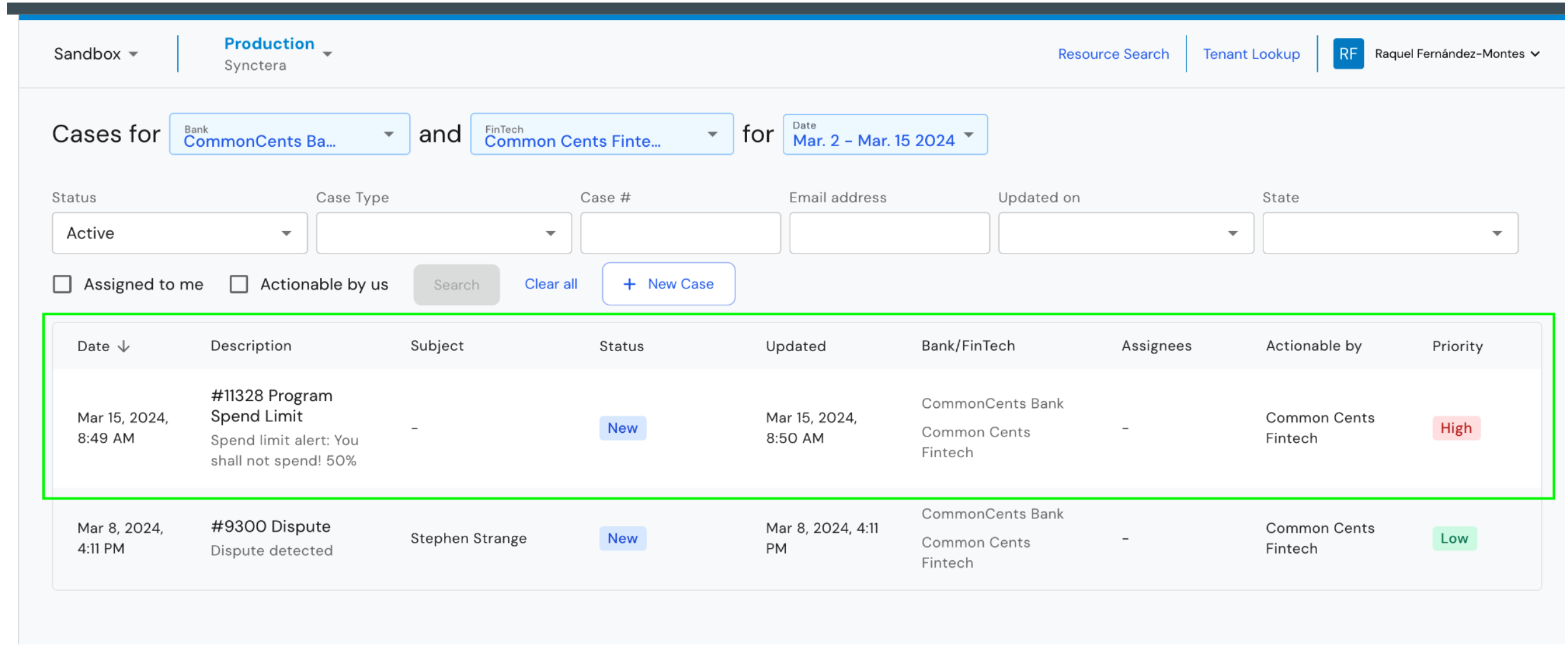
* Cases for Limit Control are in the Cases UI as ‘Program Spend Limit’
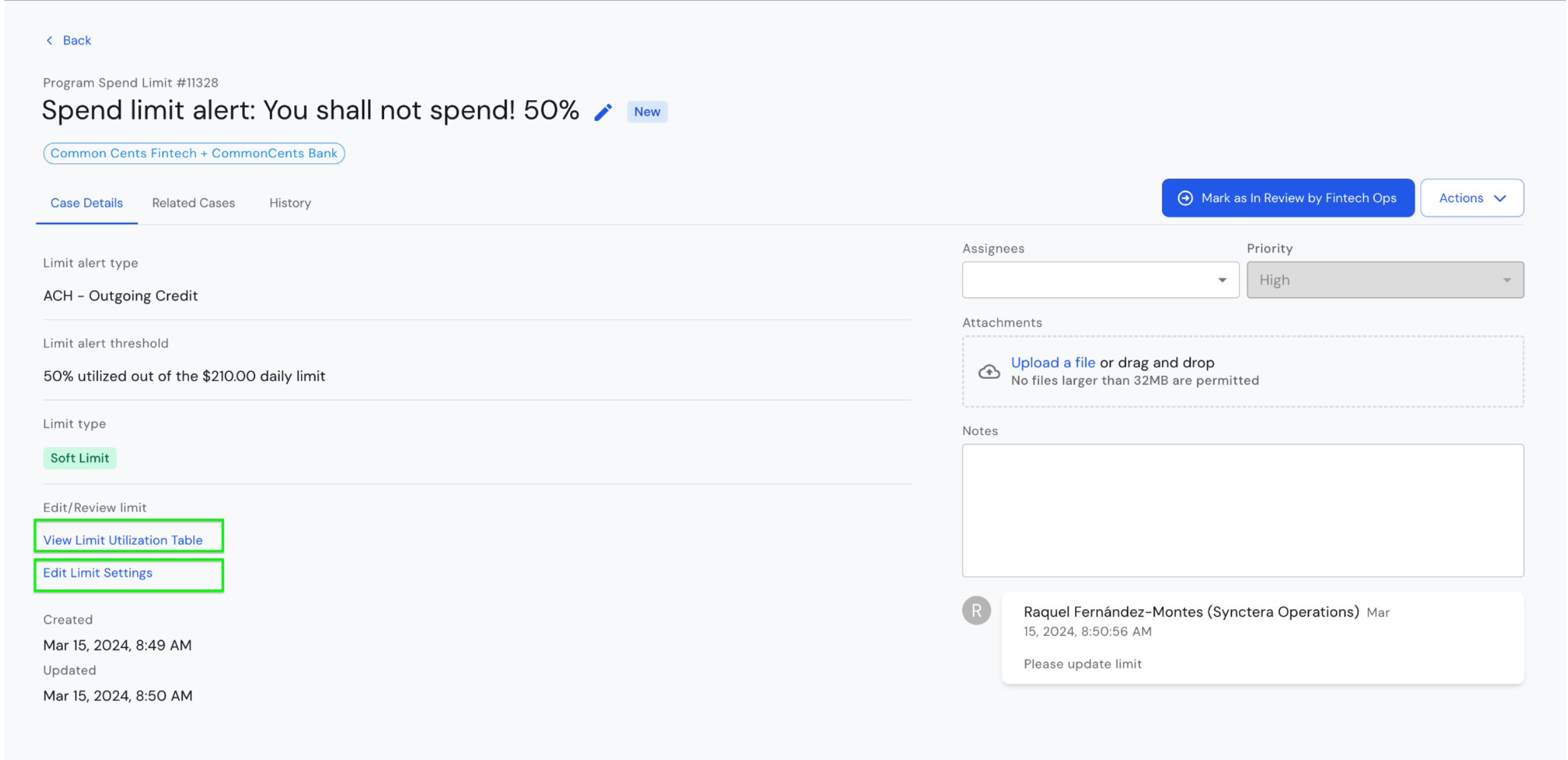
 * Bank Users and Synctera Risk OPS can review the limit utilization table and edit the Limit Settings from the UI
 For more information about Limit Controls, please refer to [Limit Control Guide](/docs/limit-control#)