> ## Documentation Index
> Fetch the complete documentation index at: https://docs.synctera.com/llms.txt
> Use this file to discover all available pages before exploring further.
# Rewards
> Rewards orchestrated and automated by the Synctera system.
## Setup Overview
For rewards automated by the Synctera system, you need to go through the following steps in the Synctera Console:
1. Create a Reward Template: Defines the Reward transaction subtype and the offsetting internal account
2. Create a Reward Rule: Defines when and how the reward should be applied
3. Create a Reward Product: Add the reward to a Reward Product
4. Add Reward Product to Account Template: By adding the Reward Product to the Account Template, you ensure that the reward is applied to all accounts created using this template
In this guide, you will walk through the steps to set up 1% cashback on fuel transactions (Merchant Category Codes 5541-5542).
### 1. Create a Reward Template
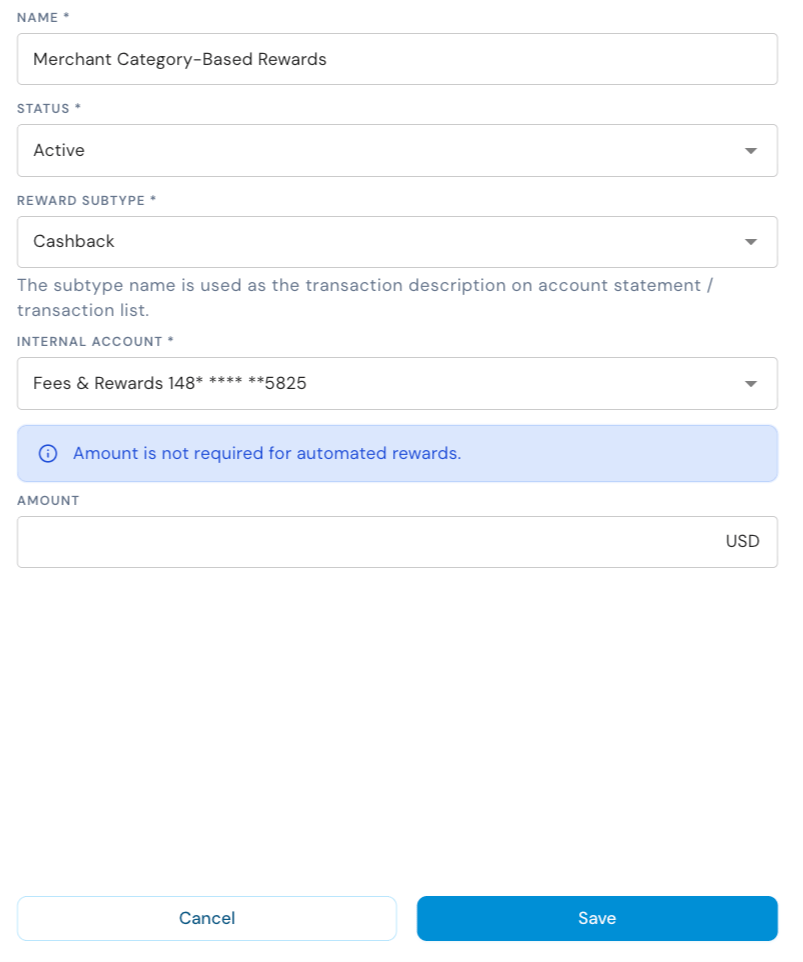
First, create a reward template for the 1% cashback on fuel transactions. To do this, navigate to *Operations > Rewards*, select the *Templates* tab and click on the *New Template* button in the upper right corner. Then fill in the information for your template.
* `Amount` is not required on automated rewards as it is defined on the Reward Rule
* The `Subtype` is used as the transaction description on Account Statement / Transaction List.
 ### 2. Create a Reward Rule
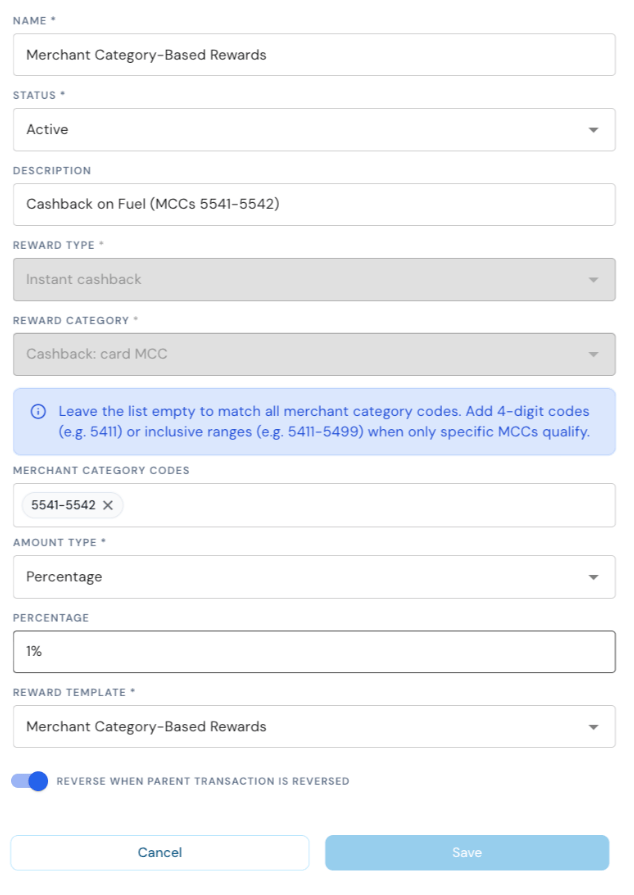
Next, navigate to the *Rules* tab and click on the *New Rule* button in the upper right corner to create a Reward Rule and link to the template you created in step 1.
* The key elements of the reward rule are the **Reward Type** and **Reward Category**, which together define to which card transaction the reward should be applied. For the cashback on fuel transactions, use Reward Type “Instant cashback”, and specify the Merchant Category Codes (MCCs) for fuel, 5541-5542.
* Instant cashback based on MCC codes is the only reward type and category currently supported.
* Specify the **Amount Type**. This can be a fixed amount, a percentage of the transaction amount or tiered by transaction amount. For the 1% cashback on fuel transactions, select “Percentage” and set it to 1%.
* Link the rule to a Reward Template - this ensures that the correct transaction subtype and offsetting account are used when the reward is posted. You can select the template created in step 1 in the Template dropdown.
* Finally, specify whether the reward should be reversed if the original transaction is reversed.
### 2. Create a Reward Rule
Next, navigate to the *Rules* tab and click on the *New Rule* button in the upper right corner to create a Reward Rule and link to the template you created in step 1.
* The key elements of the reward rule are the **Reward Type** and **Reward Category**, which together define to which card transaction the reward should be applied. For the cashback on fuel transactions, use Reward Type “Instant cashback”, and specify the Merchant Category Codes (MCCs) for fuel, 5541-5542.
* Instant cashback based on MCC codes is the only reward type and category currently supported.
* Specify the **Amount Type**. This can be a fixed amount, a percentage of the transaction amount or tiered by transaction amount. For the 1% cashback on fuel transactions, select “Percentage” and set it to 1%.
* Link the rule to a Reward Template - this ensures that the correct transaction subtype and offsetting account are used when the reward is posted. You can select the template created in step 1 in the Template dropdown.
* Finally, specify whether the reward should be reversed if the original transaction is reversed.
 ### 3. Create a Reward Product
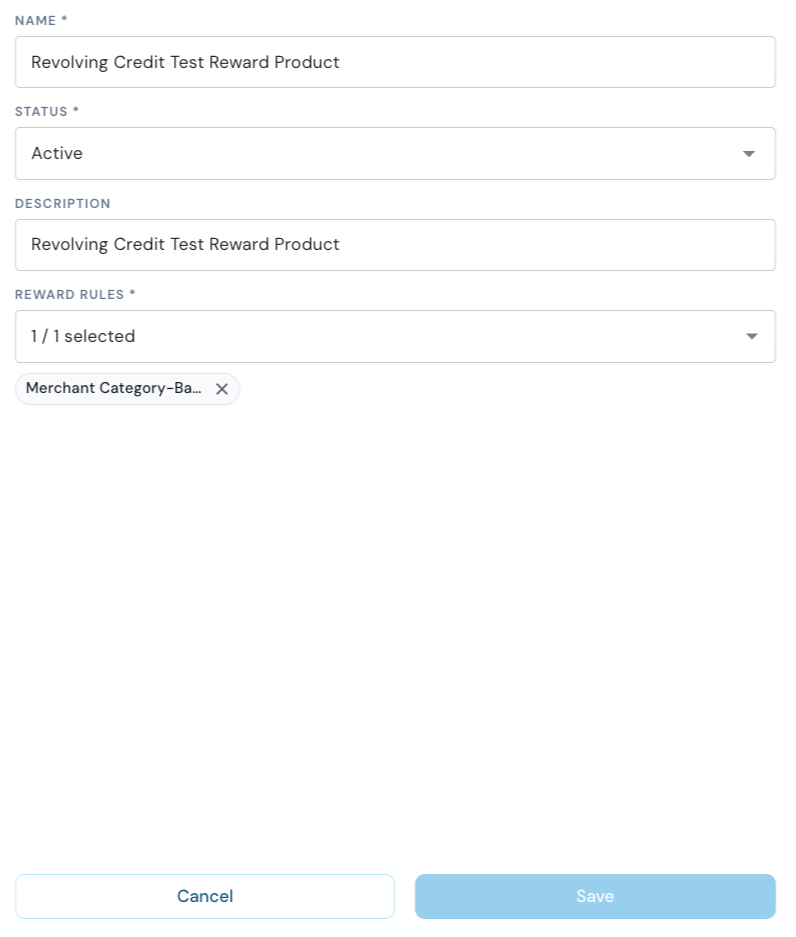
Once you have created a Reward Rule, add it to a Reward Product that you link to the Account Template. To create a Reward Product, navigate to the *Reward products* tab and click on the *New Product* button in the upper right corner.
* See below example for a Reward Product utilizing the cashback reward rule created in step 2.
* You can add multiple Reward Rules to the same product to bundle multiple reward rules into reusable packages. Only one reward rule is selected in the example below.
### 3. Create a Reward Product
Once you have created a Reward Rule, add it to a Reward Product that you link to the Account Template. To create a Reward Product, navigate to the *Reward products* tab and click on the *New Product* button in the upper right corner.
* See below example for a Reward Product utilizing the cashback reward rule created in step 2.
* You can add multiple Reward Rules to the same product to bundle multiple reward rules into reusable packages. Only one reward rule is selected in the example below.
 ### 4. Add Reward Product to Account Template
The final step to ensure that the reward is applied automatically to a transaction on an account is to link the Reward Product to the Account Template. Consequently, all accounts created using that template inherit all the reward rules that are bundled into the linked product at the time of account creation. Any changes made to the linked product will apply to all accounts using that reward product.
To add the Reward Product created in step 3 to an account template, navigate to *Accounts > Templates* and select the Account Template you want to add the Reward Product to. At the bottom of the form, you can select your Reward Product from the Reward Product dropdown.
### 4. Add Reward Product to Account Template
The final step to ensure that the reward is applied automatically to a transaction on an account is to link the Reward Product to the Account Template. Consequently, all accounts created using that template inherit all the reward rules that are bundled into the linked product at the time of account creation. Any changes made to the linked product will apply to all accounts using that reward product.
To add the Reward Product created in step 3 to an account template, navigate to *Accounts > Templates* and select the Account Template you want to add the Reward Product to. At the bottom of the form, you can select your Reward Product from the Reward Product dropdown.
 ## Viewing Applied Rewards
### Reward Products on Account
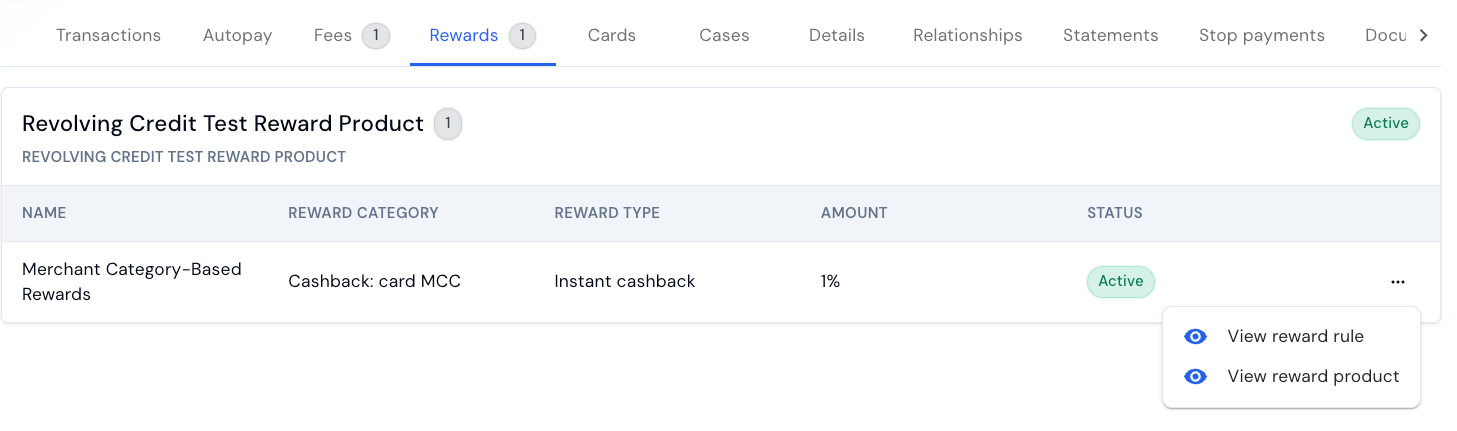
If a Reward Product has been applied to an account, it can be viewed in the *Rewards* tab on the account. Example:
## Viewing Applied Rewards
### Reward Products on Account
If a Reward Product has been applied to an account, it can be viewed in the *Rewards* tab on the account. Example:
 ### Reward Triggering Transaction
If a transaction triggered a reward, the reward is shown on the *Transaction Details*. Example:
### Reward Triggering Transaction
If a transaction triggered a reward, the reward is shown on the *Transaction Details*. Example:
