> ## Documentation Index
> Fetch the complete documentation index at: https://docs.synctera.com/llms.txt
> Use this file to discover all available pages before exploring further.
# Set PIN Widget
> Allow your customers to set or change their card PIN with secure confirmation.
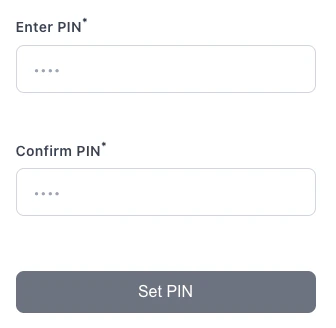
The Set PIN widget allows your customers to set or change their card PIN by entering and confirming a new PIN.
 ## Step 1: Load the Widget Script
Load the Set PIN widget script into your page:
```html HTML theme={"system"}
```
```javascript React theme={"system"}
import { useEffect } from 'react';
function SetPinForm({ widgetToken }) {
useEffect(() => {
const script = document.createElement('script');
script.type = 'module';
script.src = 'https://assets.synctera.com/widgets/set-pin/v1.1.1/index.js';
document.head.appendChild(script);
return () => {
document.head.removeChild(script);
};
}, []);
return (
);
}
```
## Step 2: Get a Widget Token
Request a widget token for setting the PIN:
```bash curl theme={"system"}
curl -X GET "https://api.synctera.com/v2/cards/{card_id}/widget_token?widget_type=SET_PIN" \
-H "Authorization: Bearer {apiKey}" \
-H "Content-Type: application/json"
```
```javascript Node.js theme={"system"}
const response = await fetch(
`https://api.synctera.com/v2/cards/${cardId}/widget_token?widget_type=SET_PIN`,
{
method: 'GET',
headers: {
'Authorization': `Bearer ${apiKey}`,
'Content-Type': 'application/json'
}
}
);
const { widget_token } = await response.json();
```
Widget tokens expire after **5 minutes** and are scoped to a specific card. Generate a new token on each page load or when the user initiates a new PIN change.
## Step 3: Add the Widget Component
Add the `` web component to your page:
```html theme={"system"}
```
***
## Configuration Options
| Property | Type | Required | Default | Description |
| --------------- | -------- | -------- | ----------- | -------------------------------------------------------------------------------------- |
| `token` | `string` | Yes | - | Widget token obtained from the API |
| `env` | `string` | Yes | - | Environment: `sandbox` or `production` |
| `theme` | `string` | No | `"default"` | Theme preset: `"default"` or `"night-shift"` |
| `styles` | `string` | No | `{}` | JSON string of [design tokens](/v2/docs/card-widgets-theming) for visual customization |
| `custom-labels` | `string` | No | `{}` | JSON string of custom labels for form fields |
***
## Custom Labels
Customize the labels displayed in the widget:
```html theme={"system"}
```
Available custom label keys:
* `widgetTitle` - Widget header text
* `pinLabel` - PIN field label
* `confirmPinLabel` - Confirm PIN field label
* `pinPlaceholder` - PIN field placeholder
* `confirmPinPlaceholder` - Confirm PIN placeholder
* `submitButtonText` - Submit button text
* `submitLoadingText` - Loading state text
***
## Event Handling
The widget dispatches lifecycle events across two phases:
| Phase | Events | Description |
| ------------------ | -------------------------------------- | -------------------------------------------------------------------------------------------- |
| **Initialization** | `load` or `error` (mutually exclusive) | Fires once when the widget first renders and its secure input fields load (or fail to load). |
| **Submission** | `success` or `failure` | Fires after the user submits the form. |
* **`load`** — Widget initialized successfully, all fields are ready for user input.
* **`error`** — Widget failed to initialize (field load failure, network error, or timeout).
* **`success`** — PIN was set successfully.
* **`failure`** — PIN setting failed (PINs do not match, expired widget token, or API error).
`error` fires only during widget initialization (e.g., a secure input field failed to load). If the widget loads successfully but the user's submission fails — mismatched PINs, expired token — that triggers `failure`, not `error`.
You can listen for events using either **`addEventListener`** or **callback properties**:
| Event | addEventListener | Callback property |
| ---------------------- | ---------------------------------------- | ----------------------- |
| Initialization success | `widget.addEventListener('load', fn)` | `widget.onLoad = fn` |
| Initialization failure | `widget.addEventListener('error', fn)` | `widget.onError = fn` |
| Submission success | `widget.addEventListener('success', fn)` | `widget.onSuccess = fn` |
| Submission failure | `widget.addEventListener('failure', fn)` | `widget.onFailure = fn` |
### Load Event
Dispatched when all secure input fields have loaded and the widget is fully functional. Use it to hide loading UI or enable dependent controls.
| Property | Type | Description |
| ------------ | -------- | ---------------------------------- |
| `instanceId` | `string` | Unique ID for this widget instance |
```html theme={"system"}
```
### Error Event
Dispatched when the widget fails to initialize. This means one or more secure input fields could not load, and the widget is not functional. Show an error message or retry UI to the user.
| Property | Type | Description |
| -------------- | ---------- | ---------------------------------------------- |
| `instanceId` | `string` | Unique ID for this widget instance |
| `error` | `string` | Human-readable error message (safe to display) |
| `failedFields` | `string[]` | List of field types that failed to load |
```html theme={"system"}
```
The `load` and `error` events are mutually exclusive — exactly one will fire during widget initialization. Always listen for both to handle all scenarios.
### Success and Failure Events
Dispatched after the user submits the PIN form. Common `failure` reasons include mismatched PINs and expired widget token.
The `success` event exposes only non-sensitive status metadata:
| Property | Type | Description |
| ------------ | -------- | ---------------------------------------- |
| `status` | `string` | Submission status returned by the widget |
| `message` | `string` | Optional human-readable success message |
| `instanceId` | `string` | Unique ID for this widget instance |
PIN values are never included in host-page event details.
```html addEventListener theme={"system"}
```
```html Callback Properties theme={"system"}
```
***
## Complete Example
```html Complete HTML Example theme={"system"}
Set Card PIN
## Step 1: Load the Widget Script
Load the Set PIN widget script into your page:
```html HTML theme={"system"}
```
```javascript React theme={"system"}
import { useEffect } from 'react';
function SetPinForm({ widgetToken }) {
useEffect(() => {
const script = document.createElement('script');
script.type = 'module';
script.src = 'https://assets.synctera.com/widgets/set-pin/v1.1.1/index.js';
document.head.appendChild(script);
return () => {
document.head.removeChild(script);
};
}, []);
return (
);
}
```
## Step 2: Get a Widget Token
Request a widget token for setting the PIN:
```bash curl theme={"system"}
curl -X GET "https://api.synctera.com/v2/cards/{card_id}/widget_token?widget_type=SET_PIN" \
-H "Authorization: Bearer {apiKey}" \
-H "Content-Type: application/json"
```
```javascript Node.js theme={"system"}
const response = await fetch(
`https://api.synctera.com/v2/cards/${cardId}/widget_token?widget_type=SET_PIN`,
{
method: 'GET',
headers: {
'Authorization': `Bearer ${apiKey}`,
'Content-Type': 'application/json'
}
}
);
const { widget_token } = await response.json();
```
Widget tokens expire after **5 minutes** and are scoped to a specific card. Generate a new token on each page load or when the user initiates a new PIN change.
## Step 3: Add the Widget Component
Add the `` web component to your page:
```html theme={"system"}
```
***
## Configuration Options
| Property | Type | Required | Default | Description |
| --------------- | -------- | -------- | ----------- | -------------------------------------------------------------------------------------- |
| `token` | `string` | Yes | - | Widget token obtained from the API |
| `env` | `string` | Yes | - | Environment: `sandbox` or `production` |
| `theme` | `string` | No | `"default"` | Theme preset: `"default"` or `"night-shift"` |
| `styles` | `string` | No | `{}` | JSON string of [design tokens](/v2/docs/card-widgets-theming) for visual customization |
| `custom-labels` | `string` | No | `{}` | JSON string of custom labels for form fields |
***
## Custom Labels
Customize the labels displayed in the widget:
```html theme={"system"}
```
Available custom label keys:
* `widgetTitle` - Widget header text
* `pinLabel` - PIN field label
* `confirmPinLabel` - Confirm PIN field label
* `pinPlaceholder` - PIN field placeholder
* `confirmPinPlaceholder` - Confirm PIN placeholder
* `submitButtonText` - Submit button text
* `submitLoadingText` - Loading state text
***
## Event Handling
The widget dispatches lifecycle events across two phases:
| Phase | Events | Description |
| ------------------ | -------------------------------------- | -------------------------------------------------------------------------------------------- |
| **Initialization** | `load` or `error` (mutually exclusive) | Fires once when the widget first renders and its secure input fields load (or fail to load). |
| **Submission** | `success` or `failure` | Fires after the user submits the form. |
* **`load`** — Widget initialized successfully, all fields are ready for user input.
* **`error`** — Widget failed to initialize (field load failure, network error, or timeout).
* **`success`** — PIN was set successfully.
* **`failure`** — PIN setting failed (PINs do not match, expired widget token, or API error).
`error` fires only during widget initialization (e.g., a secure input field failed to load). If the widget loads successfully but the user's submission fails — mismatched PINs, expired token — that triggers `failure`, not `error`.
You can listen for events using either **`addEventListener`** or **callback properties**:
| Event | addEventListener | Callback property |
| ---------------------- | ---------------------------------------- | ----------------------- |
| Initialization success | `widget.addEventListener('load', fn)` | `widget.onLoad = fn` |
| Initialization failure | `widget.addEventListener('error', fn)` | `widget.onError = fn` |
| Submission success | `widget.addEventListener('success', fn)` | `widget.onSuccess = fn` |
| Submission failure | `widget.addEventListener('failure', fn)` | `widget.onFailure = fn` |
### Load Event
Dispatched when all secure input fields have loaded and the widget is fully functional. Use it to hide loading UI or enable dependent controls.
| Property | Type | Description |
| ------------ | -------- | ---------------------------------- |
| `instanceId` | `string` | Unique ID for this widget instance |
```html theme={"system"}
```
### Error Event
Dispatched when the widget fails to initialize. This means one or more secure input fields could not load, and the widget is not functional. Show an error message or retry UI to the user.
| Property | Type | Description |
| -------------- | ---------- | ---------------------------------------------- |
| `instanceId` | `string` | Unique ID for this widget instance |
| `error` | `string` | Human-readable error message (safe to display) |
| `failedFields` | `string[]` | List of field types that failed to load |
```html theme={"system"}
```
The `load` and `error` events are mutually exclusive — exactly one will fire during widget initialization. Always listen for both to handle all scenarios.
### Success and Failure Events
Dispatched after the user submits the PIN form. Common `failure` reasons include mismatched PINs and expired widget token.
The `success` event exposes only non-sensitive status metadata:
| Property | Type | Description |
| ------------ | -------- | ---------------------------------------- |
| `status` | `string` | Submission status returned by the widget |
| `message` | `string` | Optional human-readable success message |
| `instanceId` | `string` | Unique ID for this widget instance |
PIN values are never included in host-page event details.
```html addEventListener theme={"system"}
```
```html Callback Properties theme={"system"}
```
***
## Complete Example
```html Complete HTML Example theme={"system"}
Set Card PIN
Set Your Card PIN
```
```javascript React Example (Callback Properties) theme={"system"}
import { useEffect, useState, useRef } from 'react';
function SetPinForm({ cardId }) {
const [widgetToken, setWidgetToken] = useState(null);
const [error, setError] = useState(null);
const widgetRef = useRef(null);
useEffect(() => {
const script = document.createElement('script');
script.type = 'module';
script.src = 'https://assets.synctera.com/widgets/set-pin/v1.1.1/index.js';
document.head.appendChild(script);
fetch('/api/card-widget-token', {
method: 'POST',
headers: { 'Content-Type': 'application/json' },
body: JSON.stringify({ card_id: cardId, widget_type: 'SET_PIN' })
})
.then(res => res.json())
.then(data => setWidgetToken(data.widget_token))
.catch(err => setError(err.message));
return () => {
document.head.removeChild(script);
};
}, [cardId]);
useEffect(() => {
if (!widgetToken || !widgetRef.current) return;
const widget = widgetRef.current;
widget.onLoad = (event) => {
console.log('Widget ready:', event.detail.instanceId);
};
widget.onError = (event) => {
const { error, failedFields } = event.detail;
console.error('Widget failed to initialize:', error, failedFields);
setError(error);
};
widget.onSuccess = (event) => {
const { status, message } = event.detail;
console.log('PIN set:', status, message);
};
widget.onFailure = (event) => {
setError(event.detail.error);
};
return () => {
widget.onLoad = null;
widget.onError = null;
widget.onSuccess = null;
widget.onFailure = null;
};
}, [widgetToken]);
if (error) return Error: {error}
;
if (!widgetToken) return Loading...
;
return (
);
}
export default SetPinForm;
```