

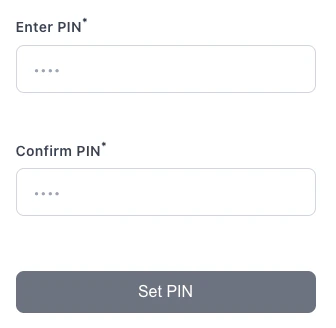
The Set PIN widget allows your customers to set or change their card PIN by entering and confirming a new PIN.
Load the Set PIN widget script into your page:
< script
type = "module"
src = "https://assets.synctera.com/widgets/set-pin/v1.0.1/index.js"
></ script >
Request a widget token for setting the PIN:
curl -X POST "https://api.synctera.com/v1/cards/{card_id}/widget_token?widget_type=SET_PIN" \
-H "Authorization: Bearer {apiKey}" \
-H "Content-Type: application/json"
Widget tokens expire after a set period and are scoped to a specific card. Generate a new token on each page load or when needed.
Add the <set-pin> web component to your page:
< set-pin
token = "your-widget-token"
env = "production"
></ set-pin >
Configuration Options
Property Type Required Default Description tokenstringYes - Widget token obtained from the API envstringYes - Environment: sandbox or production themestringNo "default"Theme style: "default" or "night-shift" custom-labelsstringNo {}JSON string of custom labels for form fields
Custom Labels
Customize the labels displayed in the widget:
< set-pin
token = "your-token"
env = "production"
custom-labels = '{
"widgetTitle": "Create Your PIN",
"pinLabel": "Enter PIN",
"confirmPinLabel": "Confirm PIN",
"submitButtonText": "Set PIN",
"submitLoadingText": "Setting PIN..."
}'
></ set-pin >
Available custom label keys:
widgetTitle - Widget header text
pinLabel - PIN field label
confirmPinLabel - Confirm PIN field label
pinPlaceholder - PIN field placeholder
confirmPinPlaceholder - Confirm PIN placeholder
submitButtonText - Submit button text
submitLoadingText - Loading state text
Event Handling
The widget dispatches lifecycle events for initialization and action outcomes:
load — Widget initialized successfully, all fields are ready for user input.
error — Widget failed to initialize (field load failure, network error, or timeout).
success — PIN was set successfully.
failure — PIN setting failed (API error, validation error, etc.).
Load Event
Dispatched when all secure input fields have loaded and the widget is fully functional. Use it to hide loading UI or enable dependent controls.
Property Type Description instanceIdstringUnique ID for this widget instance
< set-pin id = "setpin-widget" token = "your-token" env = "production" ></ set-pin >
< script >
document . getElementById ( 'setpin-widget' ). addEventListener ( 'load' , ( event ) => {
const { instanceId } = event . detail ;
console . log ( 'Widget ready' , instanceId );
});
</ script >
Error Event
Dispatched when the widget fails to initialize. This means one or more secure input fields could not load, and the widget is not functional. Show an error message or retry UI to the user.
Property Type Description instanceIdstringUnique ID for this widget instance errorstringHuman-readable error message (safe to display) failedFieldsstring[]List of field types that failed to load
< script >
document . getElementById ( 'setpin-widget' ). addEventListener ( 'error' , ( event ) => {
const { error , failedFields } = event . detail ;
console . error ( 'Widget initialization failed:' , error , failedFields );
// Show error UI or offer a retry button
});
</ script >
The load and error events are mutually exclusive — exactly one will fire during widget initialization. Always listen for both to handle all scenarios.
Success and Failure Events
< set-pin
id = "setpin-widget"
token = "your-token"
env = "production"
></ set-pin >
< script >
const widget = document . getElementById ( 'setpin-widget' );
widget . addEventListener ( 'success' , ( event ) => {
console . log ( 'PIN set successfully:' , event . detail );
// Handle success - redirect or update UI
});
widget . addEventListener ( 'failure' , ( event ) => {
console . error ( 'Setting PIN failed:' , event . detail );
// Handle error - display message to user
});
</ script >
Complete Example
Complete HTML Example
React Example
<! DOCTYPE html >
< html lang = "en" >
< head >
< meta charset = "utf-8" />
< title > Set Card PIN </ title >
< script
type = "module"
src = "https://assets.synctera.com/widgets/set-pin/v1.0.1/index.js"
></ script >
</ head >
< body >
< h1 > Set Your Card PIN </ h1 >
< div id = "error-message" style = "color: red; display: none;" ></ div >
< set-pin
id = "setpin-widget"
env = "production"
></ set-pin >
< script >
async function initializeWidget () {
try {
// Fetch widget token from your backend
const response = await fetch ( '/api/card-widget-token' , {
method: 'POST' ,
headers: { 'Content-Type' : 'application/json' },
body: JSON . stringify ({
card_id: 'your-card-id' ,
widget_type: 'SET_PIN'
})
});
const { widget_token } = await response . json ();
// Set token on widget
const widget = document . getElementById ( 'setpin-widget' );
widget . setAttribute ( 'token' , widget_token );
// Set up event listeners
widget . addEventListener ( 'load' , ( event ) => {
console . log ( 'Widget ready:' , event . detail . instanceId );
});
widget . addEventListener ( 'error' , ( event ) => {
const { error , failedFields , instanceId } = event . detail ;
console . error ( 'Widget failed to initialize:' , error , failedFields , instanceId );
document . getElementById ( 'error-message' ). textContent = error ;
document . getElementById ( 'error-message' ). style . display = 'block' ;
});
widget . addEventListener ( 'success' , ( event ) => {
console . log ( 'PIN set:' , event . detail );
alert ( 'PIN set successfully!' );
});
widget . addEventListener ( 'failure' , ( event ) => {
document . getElementById ( 'error-message' ). textContent = event . detail . error ;
document . getElementById ( 'error-message' ). style . display = 'block' ;
});
} catch ( error ) {
console . error ( 'Failed to initialize widget:' , error );
}
}
window . addEventListener ( 'DOMContentLoaded' , initializeWidget );
</ script >
</ body >
</ html >